Route readiness
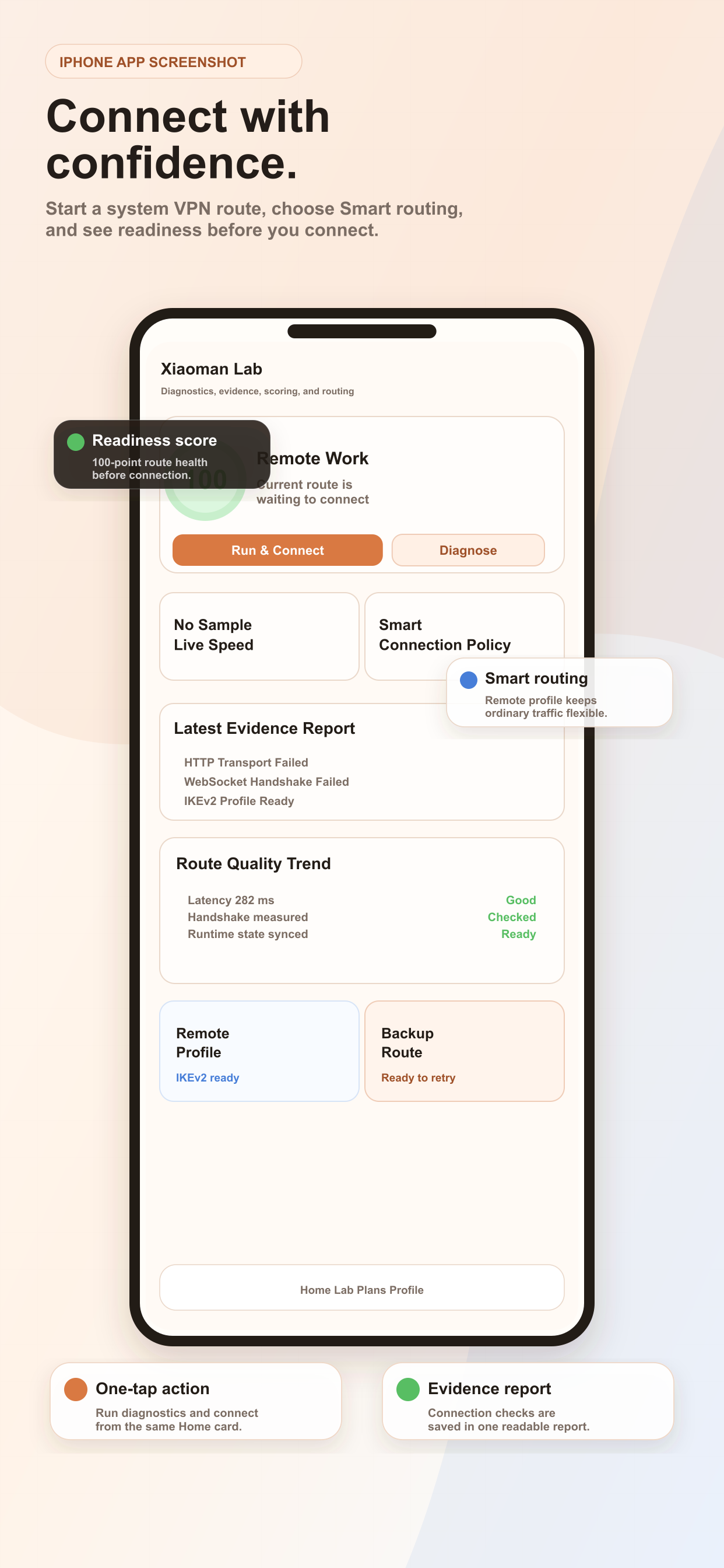
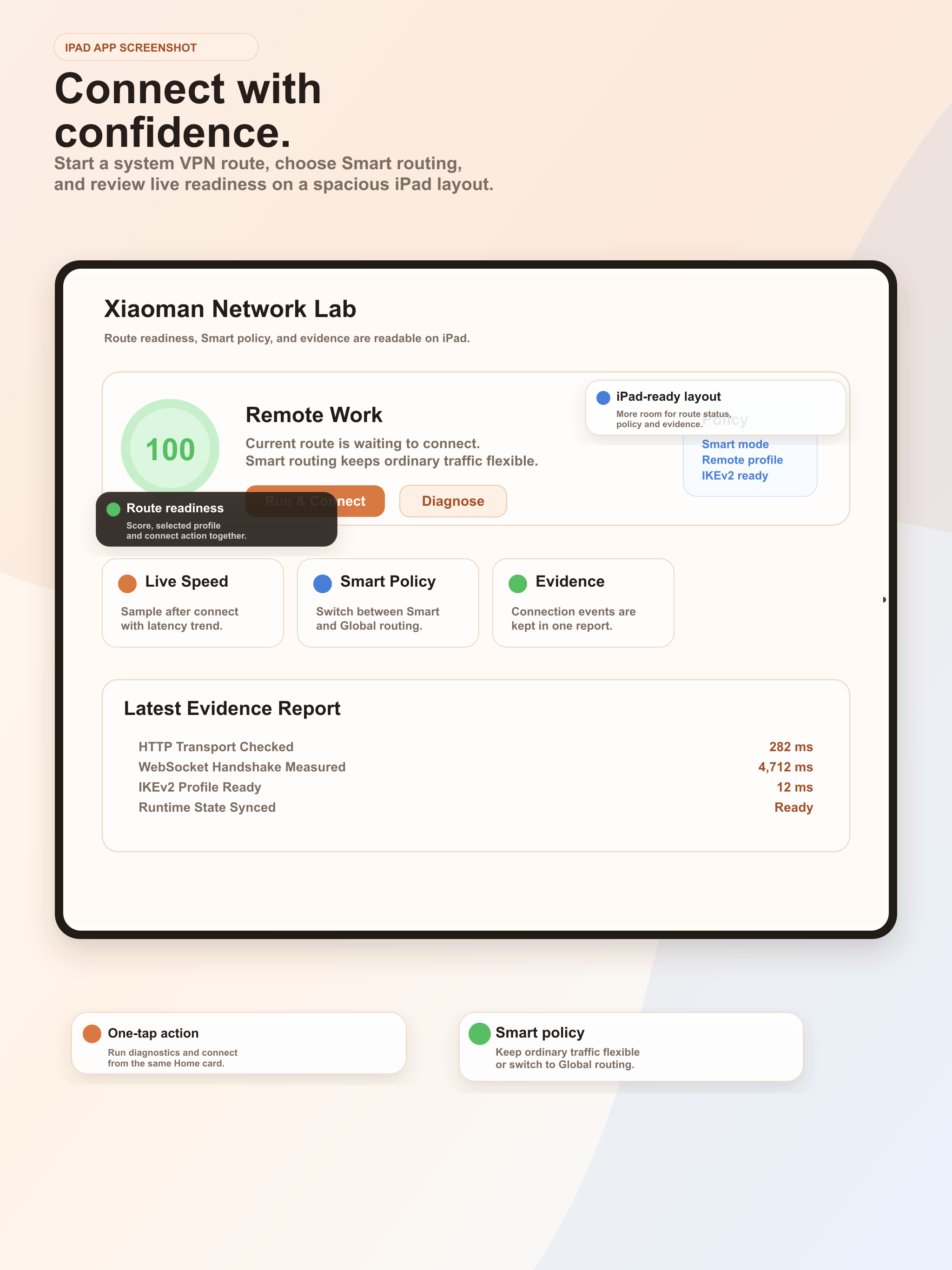
Users can review the current route score and selected profile before connecting.
Xiaoman helps users check route readiness, diagnose HTTPS, WebSocket, IKEv2 and latency issues, and understand the next action before switching routes.
The iOS app centers on a practical workflow: inspect route health, run structured probes, read evidence, and choose the best routing decision.
Users can review the current route score and selected profile before connecting.
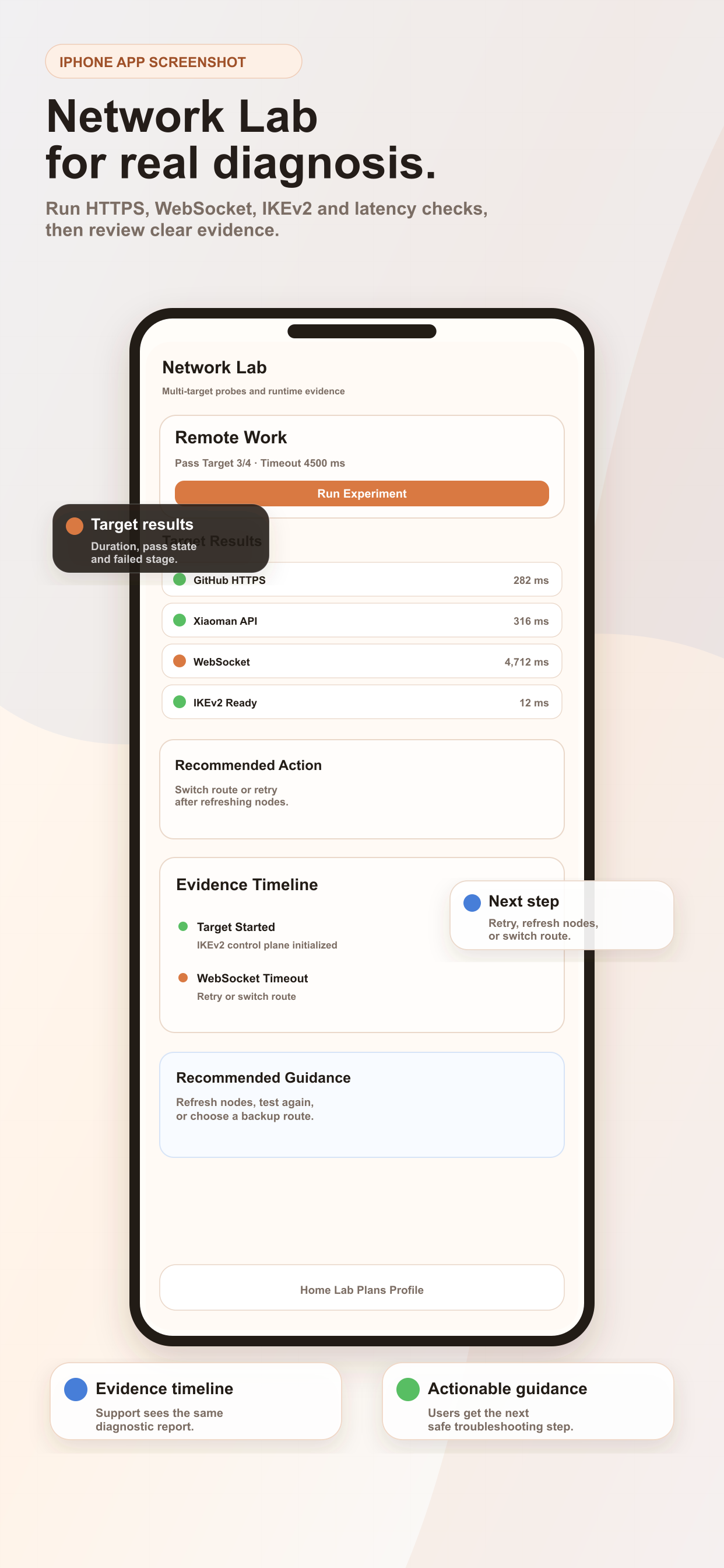
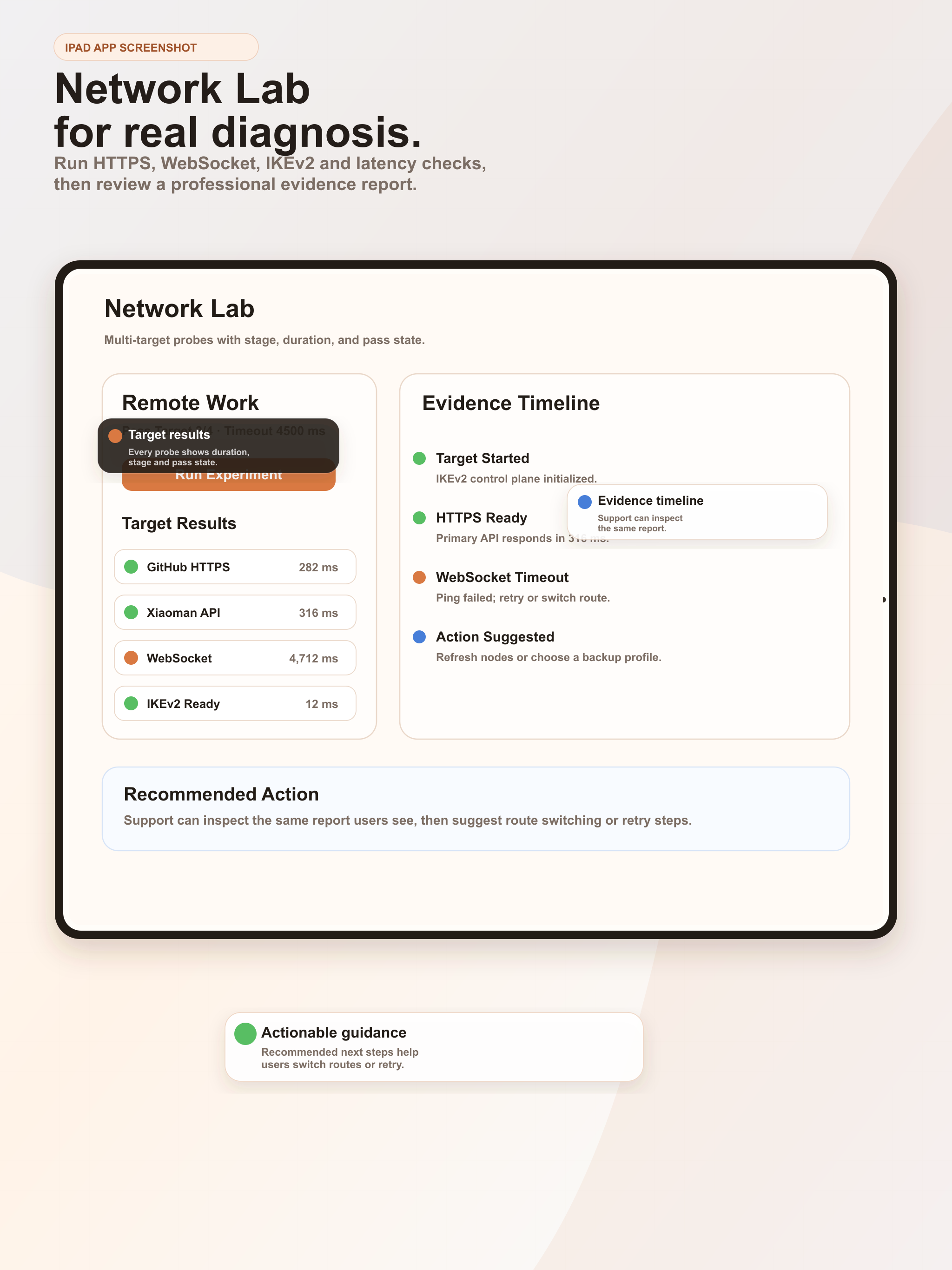
HTTPS, WebSocket, IKEv2, latency and runtime checks are grouped into one diagnostic flow.
Each failed or successful stage records target results, durations, and recommended next steps.
Help Center, support chat, device status and language controls are available from Profile.
The iPad layout keeps route status, probe results, evidence timeline and support guidance visible in a wider workspace.
Each screen highlights a specific iOS workflow: route readiness, network diagnosis, plans, devices and support.
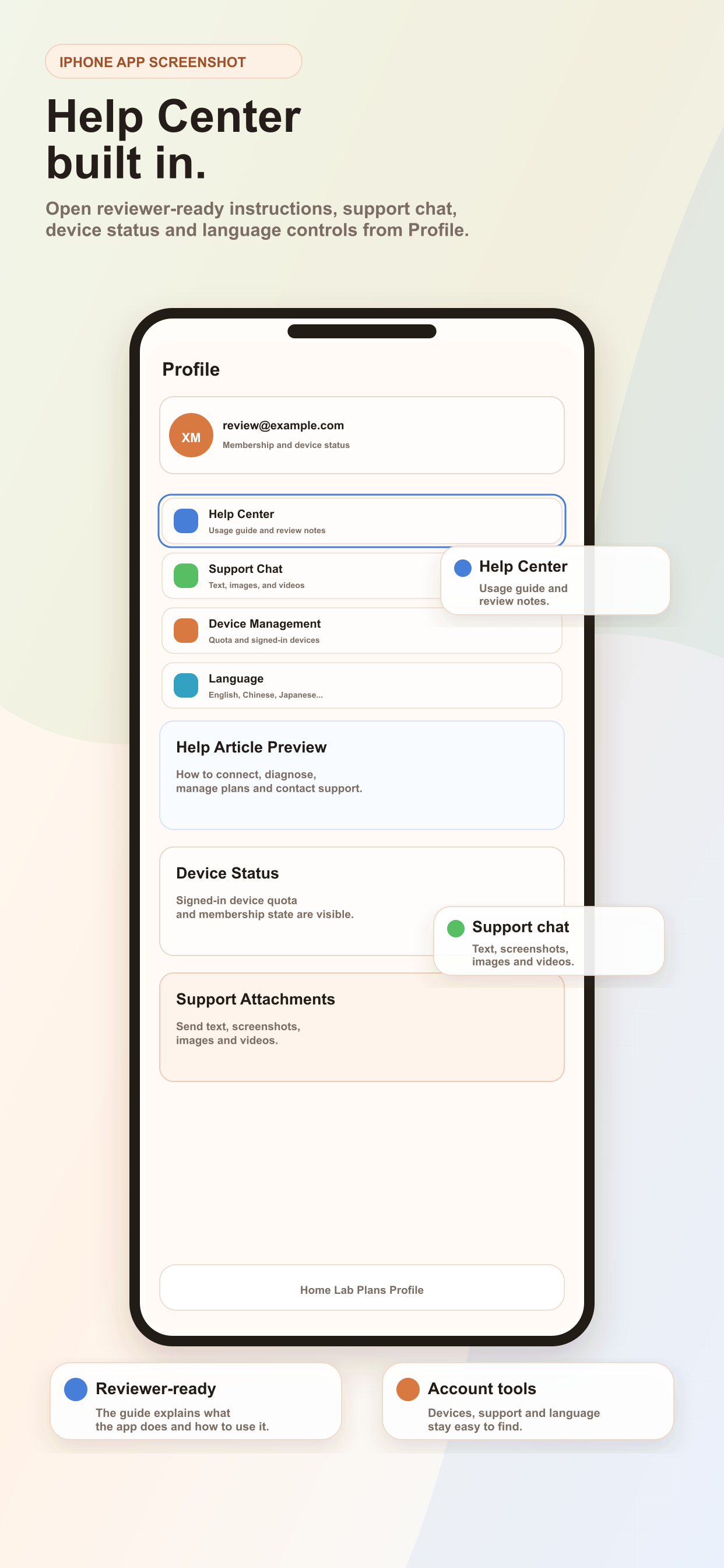
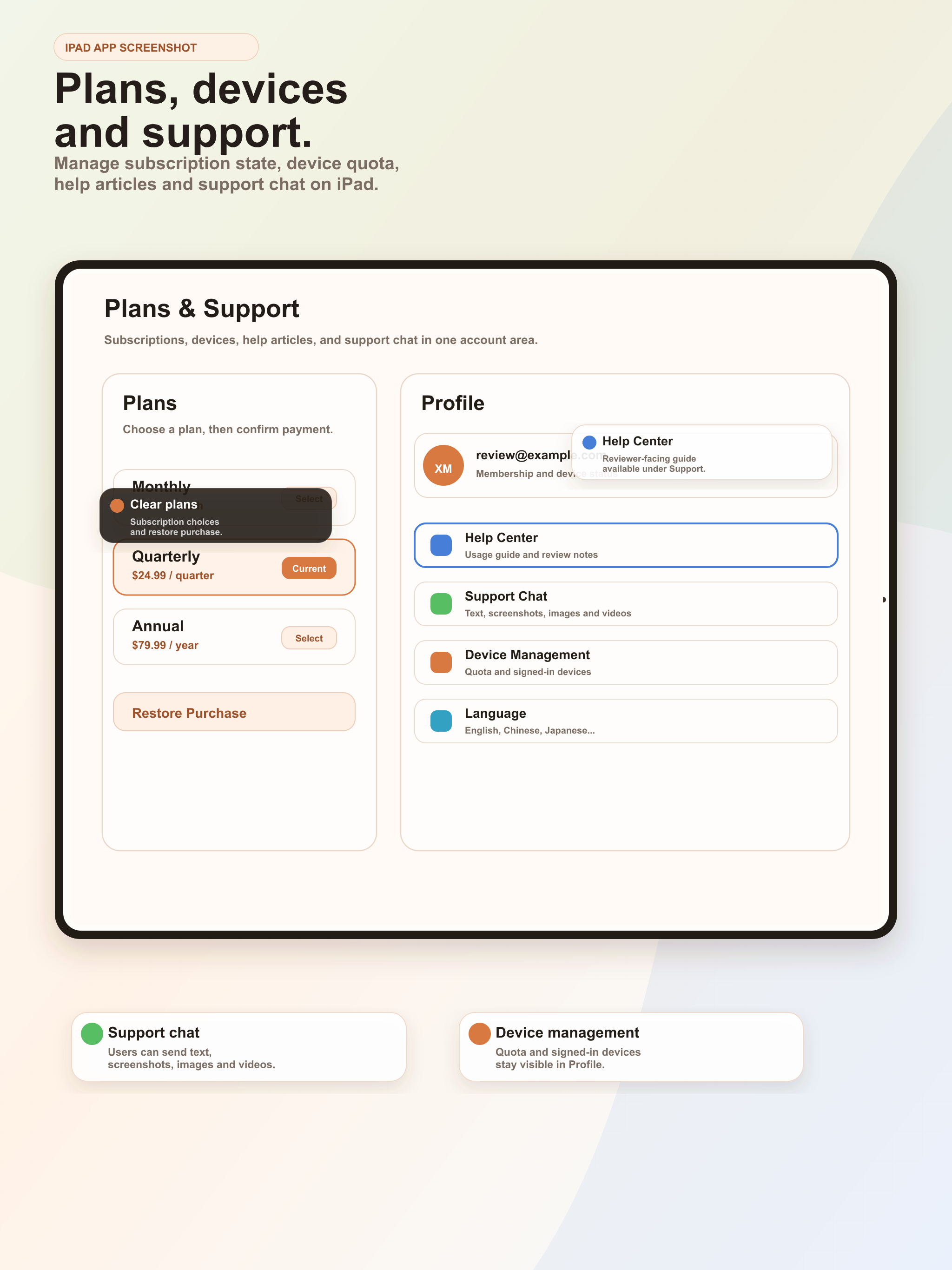
The Help Center explains how to sign in, review route readiness, run Network Lab diagnostics, inspect evidence reports, manage plans and contact support.